
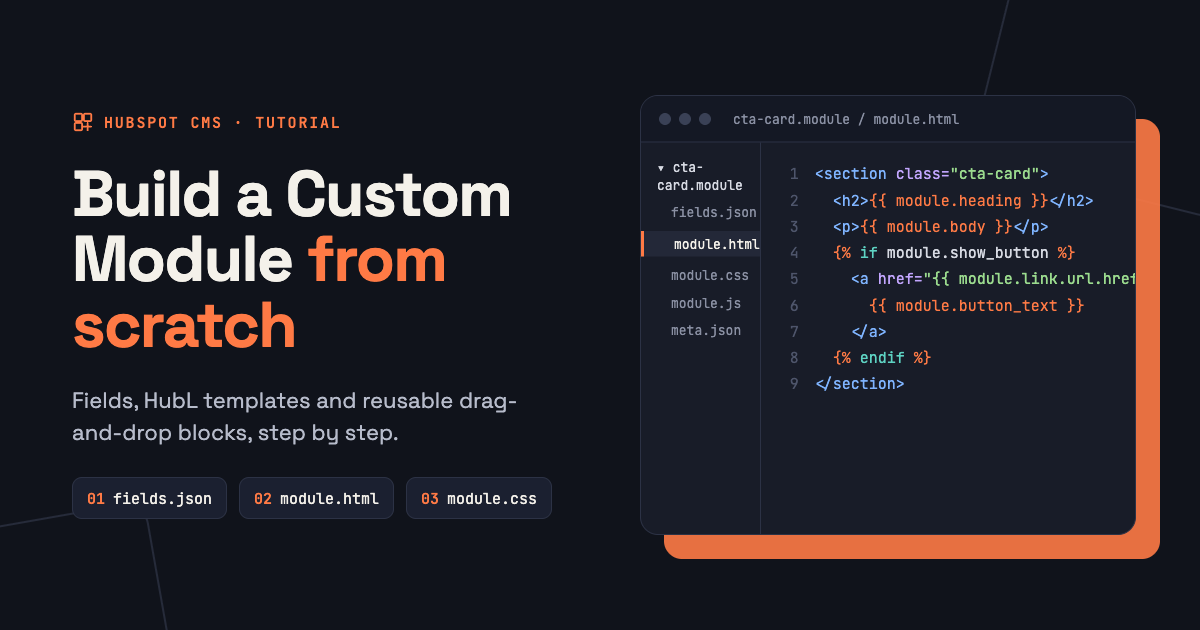
A HubSpot custom module is a folder ending in .module that contains a field definition (fields.json), a HubL template (module.html), optional CSS and JavaScript, and settings in meta.json. You build it locally, upload it with the HubSpot CLI, and editors then add it to pages and fill in its fields without touching code.
We build custom modules every week, including products on the HubSpot Marketplace. This tutorial walks through a real example, a simple "feature cards" module, and the errors that cost us the most time.
What you need
- A HubSpot account with Content Hub (a free developer test account works for learning).
- Node.js installed locally.
- The HubSpot CLI:
npm install -g @hubspot/cli - A code editor.
Connect the CLI to your account with hs init and follow the prompts to create a personal access key.
Step 1: Create the module
hs create module feature-cardsThe CLI asks where the module can be used (pages, blog posts, emails) and creates this folder:
feature-cards.module/
  fields.json   ← the fields editors fill in
  meta.json     ← label, icon, where the module is available
  module.html   ← the HubL template
  module.css    ← styles, loaded only where the module is used
  module.js     ← scripts, loaded only where the module is used
Step 2: Define the fields in fields.json
fields.json is an array of field objects. Our module needs a heading and a repeating list of cards, each with an icon image, a title, text and a link:
[
  {
    "name": "heading",
    "label": "Heading",
    "type": "text",
    "default": "Why teams choose us"
  },
  {
    "name": "cards",
    "label": "Cards",
    "type": "group",
    "occurrence": { "min": 1, "max": 6, "default": 3 },
    "children": [
      { "name": "icon", "label": "Icon", "type": "image",
        "default": { "src": "", "alt": "" } },
      { "name": "title", "label": "Title", "type": "text", "default": "Fast launch" },
      { "name": "text", "label": "Text", "type": "text", "allow_new_line": true,
        "default": "Pages your team can edit from day one." },
      { "name": "link", "label": "Link", "type": "link" }
    ],
    "default": [
      { "title": "Fast launch", "text": "Pages your team can edit from day one." },
      { "title": "Fixed price", "text": "You know the cost before work starts." },
      { "title": "Clean code", "text": "Built to HubSpot Marketplace standards." }
    ]
  }
]
A group with occurrence becomes a repeater: editors can add, remove and reorder cards. Every field should have a clear label, and fields that aren't obvious should have help_text.
Step 3: Write the HubL template
Field values are available as module.field_name. Escape text output and skip empty values:
<section class="feature-cards">

  <div class="feature-cards__grid">

  </div>
</section>
Step 4: Add CSS (and JavaScript if needed)
Put styles in module.css and scope every rule to the module's own class, so it can't break other modules on the page:
.feature-cards__grid {
  display: grid;
  gap: 1.5rem;
  grid-template-columns: repeat(auto-fit, minmax(240px, 1fr));
}
.feature-cards__card {
  padding: 1.5rem;
  border: 1px solid rgba(0, 0, 0, 0.1);
  border-radius: 12px;
}
HubSpot loads module.css and module.js only on pages that use the module, and only once even if the module appears several times.
Step 5: Upload and test
hs upload feature-cards.module "my-theme/modules/feature-cards.module"
# or keep uploading on every save:
hs watch feature-cards.module "my-theme/modules/feature-cards.module"
Then open a page in the editor, add the module, and test it like an editor would: remove all cards, add the maximum, leave fields empty, paste long text, and check the page on a phone.
Errors that cost us the most time
- Unsupported field types. Our upload was rejected for a field of type
textarea. Use atextfield with"allow_new_line": truefor multi-line plain text, or arichtextfield when editors need formatting. - Reserved field names. Fields named
nameorlabelwere rejected. Use names liketitleorperson_name. - Empty choice fields in repeaters. When editors add a new repeater item, a choice field can arrive empty even though the editor shows its default. Always fall back in HubL:
. - Marketplace class names. For modules you plan to sell on the HubSpot Marketplace, the validator required every CSS class in the module to start with the module's folder name, for example
feature-cards__titleforfeature-cards.module. Runhs cms module marketplace-validatebefore submitting. - Editor-only values. Values that change on every render, such as the current date, can trigger editor warnings. Render them in JavaScript instead.
Make it editor-friendly
- Give every field a default, so a freshly added module looks finished.
- Group related fields and move styling options into a separate group.
- Use
help_textto explain sizes, limits and where things appear. - Prefer choice fields such as "Layout: grid or list" over asking editors for CSS values.
Frequently asked questions
Can I create a HubSpot module without the CLI?
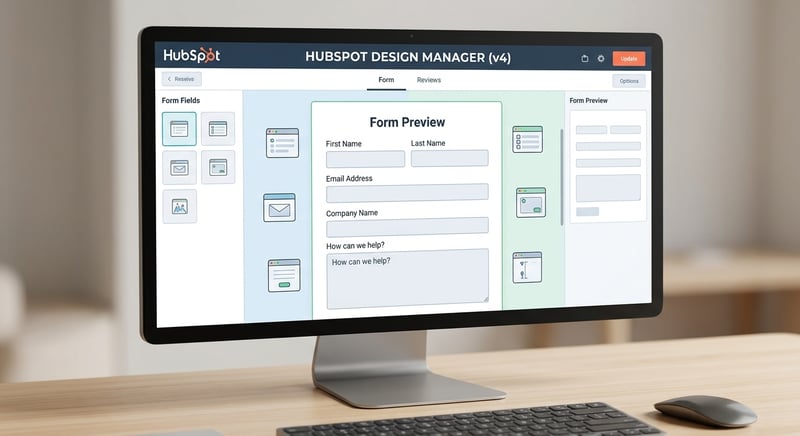
Yes. HubSpot's Design Manager lets you create modules in the browser. The CLI is better for version control and larger projects.
Can a custom module be used in emails?
Yes, if you enable email as a content type in meta.json. Email modules need table-based, inline-friendly HTML because email clients support much less CSS.
How do modules use theme settings?
Inside a theme, a module can read theme values such as theme.primary_color, so it follows the site's colors and fonts automatically.
Need a custom module built?
We build custom HubSpot modules with clear fields, help text and Marketplace-quality code, and you can browse our ready-made themes and modules too. For a one-off build, hire a HubSpot developer from our team.