
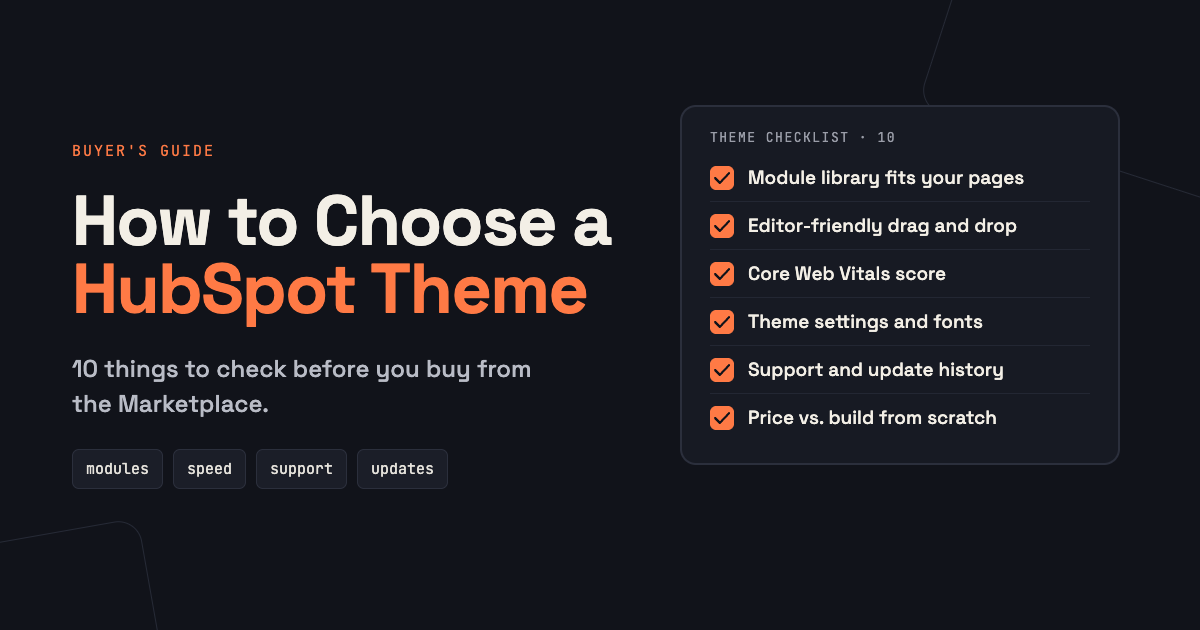
The best HubSpot theme is the one your team can edit without breaking it. Before you buy, check six things: the theme has the modules you need, page speed and accessibility hold up on real pages, global settings control colors and fonts, it works with HubSpot forms, the developer updates it, and you can get support. A beautiful demo means little if every new page needs a developer.
We build and sell themes on the HubSpot Marketplace, so these are the checks we put our own themes through. They apply whether you are looking at HubSpot CMS themes, older "HubSpot COS themes" or templates, or a custom build.
1. Start from your pages, not the demo
List the pages you need: home, service or product pages, pricing, about, contact, blog, landing pages, and anything special such as events, case studies or locations. Then check the theme has a template or module for each. Demo homepages are designed to impress; your service pages are where editors spend their time.
2. Check the module library
Modules are the building blocks editors use. A good theme has a broad, consistent set: heroes, feature grids, testimonials, pricing tables, FAQs, logos, CTAs and forms. Look for modules that work in several layouts, not twenty nearly identical ones.
3. Try the editor before you buy
Install the theme in a free or test account if you can, and build one real page. Ask:
- Are field names clear, with help text where needed?
- Can you change colors and spacing per section without code?
- Do optional fields hide cleanly when left empty?
- Does the page still look right after you add or remove items?
4. Global theme settings
Brand colors, fonts, buttons, form styling and spacing should be set once in the theme settings and apply everywhere. Without that, every color change becomes a page-by-page job.
5. Page speed
Run the demo pages through PageSpeed Insights on mobile. Heavy sliders, many web fonts, large uncompressed images and third-party libraries loaded on every page are the usual causes of slow themes. Speed matters for SEO and for conversions.
6. Accessibility
Check color contrast, visible keyboard focus, alt text fields on every image, real buttons and links, and a logical heading order. These affect real visitors and, in many markets, legal compliance.
7. HubSpot forms and CTAs
Forms built in HubSpot's newer form editor render differently from legacy forms, and many themes only style the old ones. Check the demo uses a current HubSpot form and that it matches the theme's design. If it doesn't, see how to style HubSpot forms in the new editor.
8. Blog and system pages
A complete theme styles the blog listing and post templates, plus 404, search results, password, subscription and backup unsubscribe pages. Missing system templates make parts of your site fall back to plain defaults.
9. Updates and support
Look at the Marketplace listing for the last update date, reviews that mention support, documentation and a support contact. HubSpot keeps adding features; a theme that hasn't been updated in years will fall behind.
10. Room to customize
You will want changes eventually. Check whether the theme can be extended with a child theme, so your changes survive the developer's updates, and whether the code is clean enough for your developer to work with.
Free vs paid themes
| Free themes | Paid themes | Custom theme | |
|---|---|---|---|
| Cost | None | One-off Marketplace price | Project budget |
| Modules | Basic set | Larger, more flexible library | Exactly what you need |
| Design | Generic | Distinctive, but shared with other buyers | Unique to your brand |
| Support | Limited | Usually included | From your developer |
| Best for | Testing, simple sites | Most small and mid-size sites | Larger sites with specific needs |
A common middle path: start from a paid theme and add a few custom modules for the pages that make you different.
Red flags
- Demo pages that rely on images of text or embedded screenshots instead of real modules.
- No documentation, or a single support email with no response time.
- Huge page sizes or many external scripts on the demo.
- Only the homepage is designed; inner pages look unfinished.
- No reviews or a long gap since the last update.
Frequently asked questions
Are HubSpot COS themes the same as HubSpot CMS themes?
COS was HubSpot's original name for its website platform. Today's themes are built for HubSpot's CMS (Content Hub). Older "COS templates" are usually standalone templates without a theme's global settings and drag-and-drop modules.
Can I change my HubSpot theme later?
Yes, but pages built with one theme's modules don't convert automatically to another theme's. Switching usually means rebuilding pages, so it pays to choose carefully.
Do HubSpot themes work on Content Hub Starter?
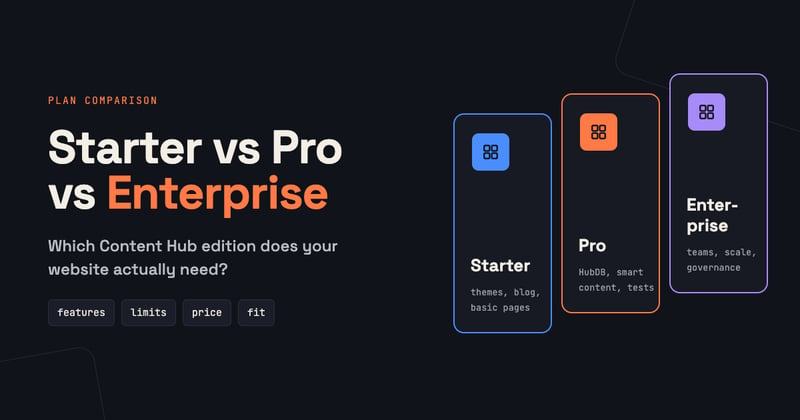
Yes. Themes work on every edition. Modules that use HubDB or other Professional features need a higher edition; see Content Hub editions compared.
Looking for a theme?
Browse our HubSpot themes and modules, each with live demo pages and documentation, or ask us about a custom HubSpot theme.